

Windows 11 is the latest operating system from Microsoft, and if you’re looking to install and set it up on your computer, follow these detailed steps:
Please read this before you begin.
- Check System Requirements: Ensure that your PC satisfies the minimal Windows 11 system requirements. A suitable 64-bit CPU with at least 1 GHz clock speed and 2 or more cores, 4 GB of RAM, and 64 GB of storage are required.
- Backup Your Data: Before beginning the installation procedure, save your crucial data to an external disk or cloud storage. This will ensure that no data is lost during the installation.
Installation Steps
- Download Windows 11: Download the Windows 11 installation files from the official Microsoft website. You might receive an ISO file or a tool to create a bootable USB drive.
- Create Installation Media: If you received an ISO file, you can burn it to a DVD or create a bootable USB drive using a tool like Rufus or the official Media Creation Tool provided by Microsoft.
- Boot from Installation Media: Insert the bootable USB drive or DVD into your computer and restart it. To boot from the installation media, you might need to press a key (like F2, F12, or Delete) to access the boot menu or BIOS/UEFI settings. Set the boot priority to the installation media.
- Begin Installation: Your computer will boot from the installation media. Follow the on-screen instructions. Choose your language, time, and keyboard preferences, then click “Next.”
- Enter Product Key: Enter your Windows 11 product key if prompted. If your PC came with Windows 10 and is eligible for a free upgrade, you might not need a new key.
- Select Installation Type: Choose between an upgrade or custom installation. If you’re upgrading from Windows 10, you can keep your files and apps. For a clean installation, choose the custom option.
- Partition Selection: If you’re performing a clean installation, you’ll need to select or create a partition to install Windows 11. You can format the partition or create new ones if necessary.
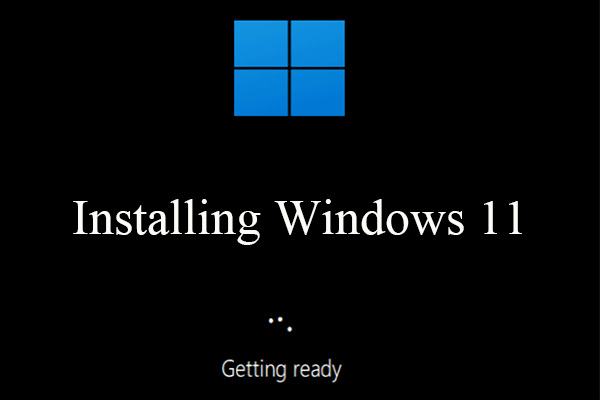
- Installation Process: The installation process will begin. Your PC might restart multiple times during this process. The setup process will copy files, install features, and update settings.
- Personalization: Follow the on-screen instructions to personalize your Windows 11 experience. This includes setting your region, language, and keyboard layout.
- Connect to Network: Choose your Wi-Fi network and enter the password if required. You can also set up a wired connection.
- Microsoft Account: Sign in with your Microsoft account or create a new one. You can also choose to use a local account, but signing in with a Microsoft account enables better synchronization and access to Microsoft services.
- Customize Settings: Customize settings related to privacy, location, diagnostic data, and more. You can choose to accept recommended settings or customize them based on your preferences.
- Wait for Setup: Windows 11 will finalize your settings and set up your desktop environment. This might take a few minutes.
- Welcome to Windows 11: Once the setup is complete, you’ll be greeted with the Windows 11 desktop. Congratulations! You’ve successfully upgraded to Windows 11. Now, take some time to explore the new features, redesigned interface, and improved functionality. Customize your Start Menu, experiment with Snap Layouts, and enjoy the enhanced gaming experience.