

Last Updated: November 4, 2026
Quick Summary
A windows license for remote freelancers is the legal right to run Windows on the machine you bill clients from, and it must be genuine and activated to your Microsoft account. Buy the exact edition you need, keep the invoice, and link the license so a hardware change does not cost you a new key.
- Windows Pro is the right choice for most freelancers who join client networks or host remote sessions.
- Buying genuine takes about fifteen minutes and activation takes five.
- One Windows license covers one machine, not multiple clients logging in at once.
- RDS CALs are required once more than one person connects to the same Windows machine simultaneously.
- Keep a one-page record per client with device name, OS edition, license reference and admin rights.
Table of Contents
- Why Remote Freelancers Need a Proper Windows License
- Windows Pro vs Home: Which Edition Fits Freelance Work
- Step-by-Step: Buying and Activating a Genuine Windows License
- Microsoft RDS CAL Requirements for Freelancers Who Share Access
- User CAL vs Device CAL: A Simple Decision Tree
- Remote Access Options: RDP, RDS, and When VDI Makes Sense
- Endpoint Security for Remote Freelancers: Protecting Your Licensed Devices
- BYOD and Contractor Compliance: Keeping Client Data Safe
- Common Licensing Mistakes Freelancers Make (and How to Avoid Them)
- Get Your Genuine Windows License and Security Sorted
- Frequently Asked Questions
Why Remote Freelancers Need a Proper Windows License
A windows license for remote freelancers is not paperwork. It is the legal right to run Windows on the machine you bill clients from. Skip it, and you risk a locked desktop, lost work, and an awkward conversation with a client.
Freelancers often buy a cut-price key, it works for months, then one morning Windows shows an activation warning. The fix is simple: buy genuine, activate it properly, and keep the proof.
The real risks of cheap or non-genuine keys
Keys sold at unusually low prices can come from sources that Microsoft may block, such as volume licenses not meant for resale or keys already used on another machine.
What can go wrong:
- Sudden deactivation. Your desktop locks into reduced mode mid-project.
- No support path. You have no receipt, so you have no case.
- Security exposure. Some resellers bundle modified installers with unwanted code.
- Client trust damage. Handing over a machine with a flagged license looks careless.
If you already hold a suspect key, read our guide on why Microsoft license keys get revoked and what to do. For the wider picture, see the risks of using cheap software keys.
Windows Pro vs Home: Which Edition Fits Freelance Work
Windows Pro is the right choice for most freelancers who connect to client networks or share their screen for support. Home is fine for a single machine that never joins a domain or receives a remote session.
The differences that matter in freelance work:
| Feature | Windows Home | Windows Pro |
|---|---|---|
| Join a domain or Entra ID | No | Yes |
| Remote Desktop host | No | Yes |
| BitLocker drive encryption | Limited | Yes |
| Hyper-V virtual machines | No | Yes |
| Group Policy editor | No | Yes |
If you take remote support calls, run a test virtual machine, or need full-disk encryption for client data, pay for Pro. If you only write and browse, Home covers it.
If Pro is your answer, you can buy a Windows 11 Pro USB license ready to install.
Step-by-Step: Buying and Activating a Genuine Windows License
Buying genuine takes about fifteen minutes. Activation takes five. Here is the full sequence.
What you need before you buy
- A Microsoft account you control, not a shared one
- The exact edition you need: Home or Pro
- Your machine’s current activation status, checked in Settings
- A payment method that gives you a proper invoice
- Confirmation the seller provides a real, traceable license
Check the seller’s return policy and ask for the invoice before you pay. A legitimate seller will supply both.
Activation and linking to your Microsoft account
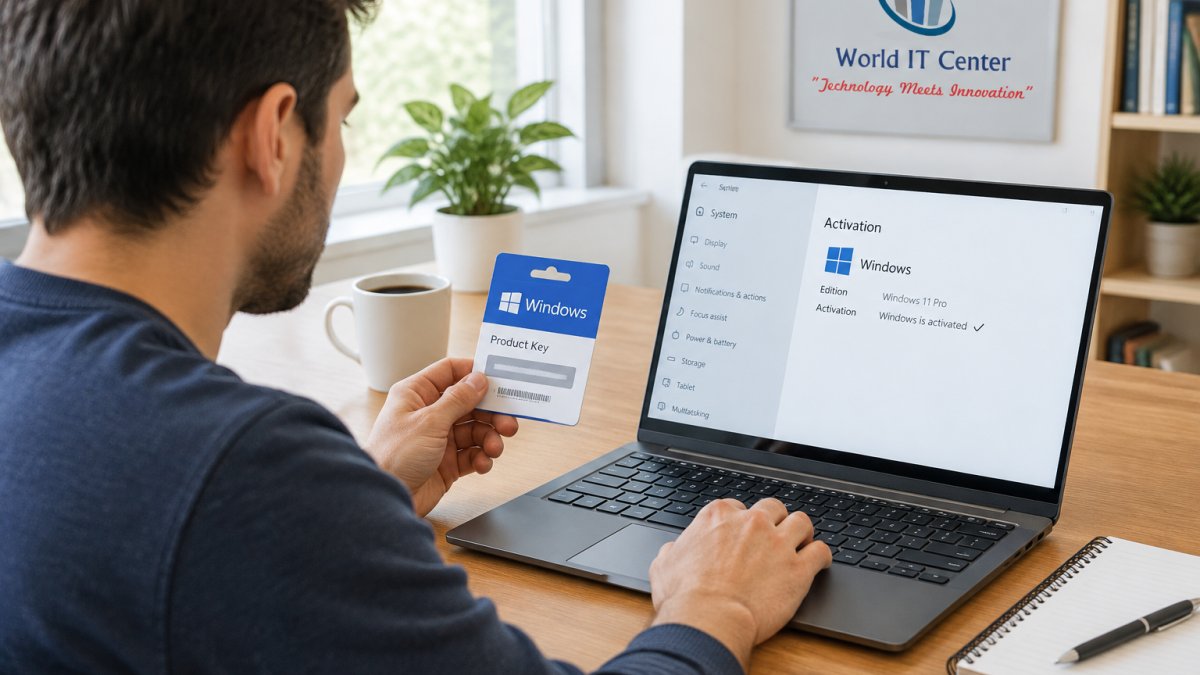
- Open Settings > System > Activation.
- Select Change product key and enter your key.
- Sign in with your Microsoft account when prompted.
- Confirm the activation status reads “Windows is activated”.
- Link the license to your account so a hardware change does not cost you a new key.
Watch out: if activation fails, do not buy a second key in a panic. Contact the seller first, because a failed activation is usually a key problem, not a machine problem.
Not sure where to buy? Our article on where to buy legitimate Microsoft software online walks through the checks.
Microsoft RDS CAL Requirements for Freelancers Who Share Access
Microsoft RDS CAL requirements apply the moment more than one person connects to the same Windows machine at the same time. A Client Access License, or CAL, is the permission slip for each user or device that connects (CAL and RDS). The rule in plain English: one Windows license covers one machine. It does not cover five clients logging in to that machine at once.
This is the part most freelancers miss. They buy a Windows Server license, enable Remote Desktop, and assume the job is done. It is not. Remote Desktop Services (RDS) is a separate role with its own licensing layer on top of the server license.
The three pieces you actually need
- A Windows Server license for the machine hosting the sessions.
- RDS CALs for every user or device that connects to that server.
- An RDS licensing server configured to issue and track those CALs.
Skip step three and the server runs in a grace period, then starts refusing connections. That is the failure mode that catches people mid-project.
User CAL vs Device CAL in RDS terms
An RDS User CAL is assigned to a named person and follows them across any number of devices (License Remote Desktop Services with Client Access Licenses (CALs)). An RDS Device CAL is assigned to a machine and lets any number of users connect from it. You choose one mode per licensing server, and the mode should match how your clients actually connect.
- Clients each use their own laptop and log in from different places? User CALs fit, because the person is the stable unit.
- Clients share a small number of kiosks or studio machines? Device CALs usually cost less, because the machine count is smaller than the headcount.
- A mix of both? Pick the mode that covers the smaller, more stable count and document the assumption.
For a solo freelancer with one client login, a single User CAL is normally enough. For a small studio with a shared editing bay, Device CALs often fit better.
What happens when you exceed your CAL count
RDS does not silently throttle. Once the licensing server has issued all available CALs, additional connection attempts are refused with a licensing error. The client sees a message about no available Remote Desktop licenses, and the session never starts. This is why you plan CALs before the first client session, not after the second complaint.
Watch out: a temporary license can be issued when the licensing server is unreachable, which makes a misconfigured environment look fine for a while and then fail once the grace period expires. Confirm the licensing server is reachable and the CAL mode is set correctly before you hand access to a client.
RDS vs plain Remote Desktop
Plain Remote Desktop Protocol (RDP) gives one person a session on one PC and needs only a Pro edition license on that PC. RDS is the multi-user version: a server hosts session-based desktops for several users at once, and every one of those users or devices needs an RDS CAL. If you are the only person connecting, you do not need RDS at all. If clients log in to a shared workspace you host, you do.
A practical checklist before you share access
- Confirm the host is running a Windows Server edition licensed for RDS.
- Decide User CAL or Device CAL mode based on how clients connect.
- Install and activate the RDS licensing server role.
- Install enough RDS CALs for your expected concurrent users or devices.
- Test a connection from a second account before a client does.
- Keep the license references and invoices on file for audits.
If you would rather not run a licensing server yourself, our team can review your setup and advise on the right licensing path. For the wider picture on genuine licensing, see our guide on where to buy legitimate Microsoft software online. A reliable licensing setup is only one part of a productive remote workspace, and the right tech accessories for professionals can make everyday work more comfortable and organized.
User CAL vs Device CAL: A Simple Decision Tree
A User CAL covers one named person across any number of devices. A Device CAL covers one machine for any number of users. Pick based on which count is smaller and more stable.
Use this decision tree:
- Do more people than devices connect? Choose Device CALs.
- Do more devices than people connect? Choose User CALs.
- Do people share machines across shifts? Device CALs usually cost less.
- Does each person use a laptop, a phone, and a tablet? User CALs win.
- Is your team growing fast? User CALs scale with headcount, not hardware.
For a solo freelancer with one client login, a single User CAL is normally enough. For a small studio with a shared editing bay, Device CALs often fit better.
Remote Access Options: RDP, RDS, and When VDI Makes Sense
Remote Desktop Protocol (RDP) gives one person a remote session on one PC. RDS shares one server across several users. Virtual Desktop Infrastructure (VDI) gives each user a separate virtual machine. The choice is not about which is best in general. It is about how many people connect, whether they need isolation, and how much management you are willing to take on.
Most freelancer guides stop at that definition. The useful part is the trade-off, so here is the plain-English version.
RDP: one person, one machine
RDP is built into Windows Pro (Enable Remote Desktop on your PC). You enable Remote Desktop, forward the right port or use a VPN, and connect. There is no extra licensing layer beyond the Pro edition on the host machine.
- Best for: solo work, occasional client support, accessing your own office PC from a laptop.
- Cost shape: lowest, because you already own the Pro license.
- Management load: low, but you own the security of the exposed port.
- Limit: one session at a time on a client edition. A second person cannot log in alongside you.
Watch out: exposing RDP directly to the internet is a common way freelancers get compromised. Put it behind a VPN or a remote access gateway, and require multi-factor authentication on the account.
RDS: several users, one shared server
RDS turns a Windows Server into a multi-user host. Each user gets a session-based desktop, and the server manages resources centrally. This is the option when clients need to log in to a shared workspace you control.
- Best for: a small team or a handful of clients sharing one environment.
- Cost shape: server license plus RDS CALs plus a licensing server to run.
- Management load: moderate. You patch one server, back up one server, and control who gets a session.
- Limit: users share the same underlying OS, so isolation between clients is weaker than VDI.
VDI: one virtual machine per user
VDI gives each user a dedicated virtual desktop. Their data and applications live in their own machine image, not a shared session.
- Best for: contractors who each need an isolated environment, or clients whose contracts require separation of data.
- Cost shape: highest, because you pay for the virtualization platform, the per-user licensing, and the storage behind each desktop.
- Management load: highest. Images need updating, storage needs sizing, and profiles need managing.
- Limit: overkill for a solo freelancer with one client login.
The decision path
- Is it just you connecting to your own machine? Use RDP on a Pro edition. Stop here.
- Do several people need to log in to one shared workspace you host? Move to RDS and plan your CALs.
- Does each client need their own isolated environment, or does a contract require data separation? Consider VDI.
- Is the isolation requirement soft rather than contractual? RDS with separate user accounts and folder permissions is usually enough.
A common pattern among freelancers is to start with RDP, move to RDS when sharing becomes routine, and only consider VDI when a client contract makes isolation a requirement. The mistake is buying VDI complexity before you have a reason for it.
A cheaper alternative worth knowing
If your only goal is to let a client see your screen or hand over control for a support session, you do not need RDS or VDI at all. A third-party remote support tool handles screen sharing and control without a server license or CALs. Reserve RDS and VDI for cases where clients need their own persistent desktop on your infrastructure.
Whatever you choose, the host machine still needs a genuine Windows license, and every device you bill from needs endpoint protection. If you want help mapping your setup to the right licensing path, our team can review it with you.
Endpoint Security for Remote Freelancers: Protecting Your Licensed Devices
A genuine license protects you legally. It does nothing to stop malware. Endpoint security for remote freelancers has to cover the machine, the connection, and the data on it.
Your baseline:
- Antivirus or endpoint protection on every device you bill from
- Full-disk encryption so a stolen laptop is not a data breach
- A patched browser and OS, updated automatically
- Multi-factor authentication on your Microsoft account
- Separate accounts for client work and personal use
For a deeper look at Windows defences, read our guide to advanced threat protection for Windows. If you want managed coverage without running it yourself, our team can set up endpoint protection and monitoring for your devices.
BYOD and Contractor Compliance: Keeping Client Data Safe
Using your own laptop for client work is normal. Doing it without controls is where freelancers get into trouble.
What most client contracts expect:
- A licensed, supported operating system
- Encryption on the device holding their data
- A named owner for the machine and the account
- Prompt removal of their data when the contract ends
- Notice if the device is lost or stolen
Keep a one-page record per client: device name, OS edition, license reference, and who holds admin rights. It takes ten minutes and answers most compliance questions before they are asked.
Common Licensing Mistakes Freelancers Make (and How to Avoid Them)
The same errors come up again and again. Each one is avoidable.
| Mistake | Why it hurts | Fix |
|---|---|---|
| Buying the cheapest key found | Key gets blocked, no recourse | Buy from a traceable seller with an invoice |
| Using one license on two machines | Activation fails on the second | One license per machine |
| Skipping the Microsoft account link | Hardware change loses activation | Link the license at setup |
| Sharing a login with clients | Breaks RDS CAL rules | Buy the right CALs |
| Ignoring edition limits | RDP host missing on Home | Buy Pro if you need remote access |
| No record of the purchase | Cannot prove compliance | Store invoice and key reference |
The pattern is clear: most problems trace back to a shortcut at purchase.
Get Your Genuine Windows License and Security Sorted
Two things protect a freelance business: a license you can prove, and a machine that is actually defended. Get both right once and you stop thinking about them.
Software, MSP, Antivirus, Consulting Services offers genuine Microsoft products and endpoint protection, including BullZIGA EDR. For current availability and a quote on managed services, contact the team directly.
Visit Software, MSP, Antivirus, Consulting Services to explore genuine licenses and endpoint protection.
Frequently Asked Questions
Do remote freelancers need their own Windows license?
Yes. If you use Windows on a device you own or control for client work, you need a genuine license for that device. A client’s license does not cover your personal machine. Buying a legitimate Windows Pro license gives you legal activation, security updates, and the ability to join a domain or use Remote Desktop. Cheap non-genuine keys may work at first but can be deactivated, leaving you without updates and exposed to compliance problems.
What is the difference between a Windows Pro license and an RDS CAL?
A Windows Pro license covers the operating system on a single device. An RDS CAL (Client Access License) is an additional license required when multiple users or devices connect to a Windows Server running Remote Desktop Services. If you only use Remote Desktop to access your own PC, you do not need an RDS CAL. If you set up a shared server for several freelancers or contractors, you will need RDS CALs on top of the server license.
Can I use a standard Windows 10 or 11 license for remote business access?
You can use Windows Pro’s built-in Remote Desktop host feature to connect to your own PC from another device, and that does not require an RDS CAL. However, Windows Home does not include Remote Desktop host. For business access where multiple people connect to a shared server session, you need Windows Server with RDS and the appropriate CALs. Always check the license terms for your specific scenario.
What are the risks of using non-genuine Windows licenses for remote work?
Non-genuine or grey-market keys can be revoked by Microsoft, leaving your system unactivated and unable to receive critical security updates. You also risk malware bundled with cheap key sellers, no entitlement to support, and potential audit findings if a client requires compliance. For freelancers handling client data, a genuine license is a basic security and professional requirement. Buy from a reputable source and keep your purchase records.
